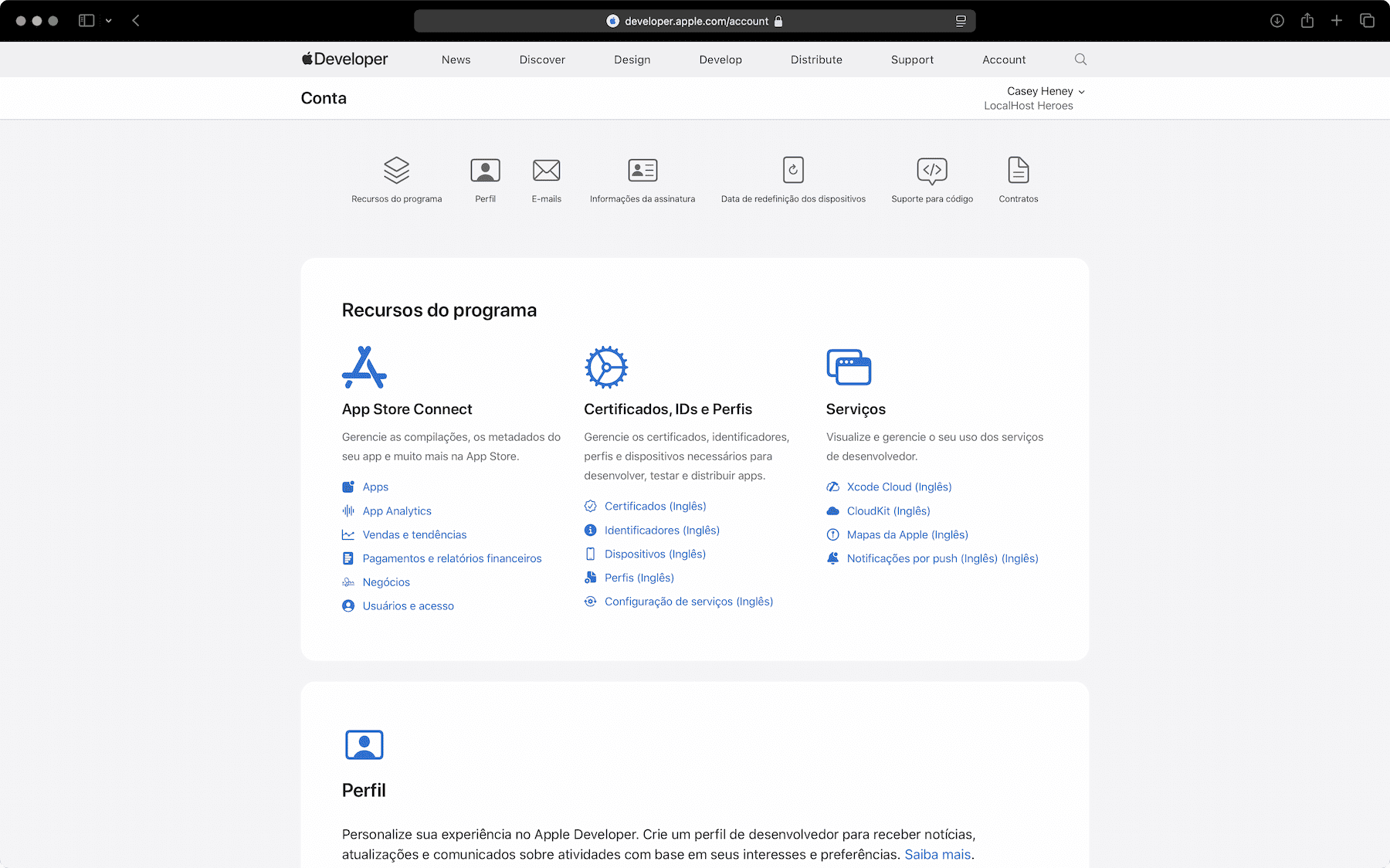
“Creating the account is only the beginning. To publish safely, enrollment and access must be fully complete.”
Many teams create an Apple Account, log into App Store Connect once, and assume everything is ready. In practice, publishing on the App Store usually gets blocked for four reasons: incomplete enrollment as an Organization, poorly configured authentication (2FA), inconsistent company data (especially D‑U‑N‑S), or insufficient permissions for the person who will publish.
This guide is a practical checklist to validate your company’s Apple Developer account and grant the correct access in App Store Connect for publishing and maintaining the app.
Official quick access: Open Apple Developer Program enrollment.
Understanding the two “pieces” of the account
To publish on the App Store, you will deal with two areas that work together:
- Apple Developer Program: the annual membership and development resources (certificates, IDs, profiles, etc.).
- App Store Connect: the publishing and management dashboard (review submission, TestFlight, users and access, contracts, taxes and banking, metrics).
In practice: you may be able to “log in” to App Store Connect, but still not be ready to publish.
Quick checklist (to know if you’re ready)
If you want a quick “yes/no”, verify:
- The account holder’s Apple Account has two-factor authentication (2FA) enabled, with trusted phone/devices up to date.
- Enrollment in the Apple Developer Program is active and done as an Organization (not an individual).
- The organization has a D‑U‑N‑S number and the data matches the legal entity (legal name and address).
- In App Store Connect, the person who will publish has the right role (ideally Admin) and, if needed, access to Certificates, Identifiers & Profiles.
- If the app will generate revenue (paid app or in-app purchases), “Agreements/Tax/Banking” is in progress.
If any item is uncertain, follow the steps below.
Step 1 — Security: 2FA and “trusted devices”
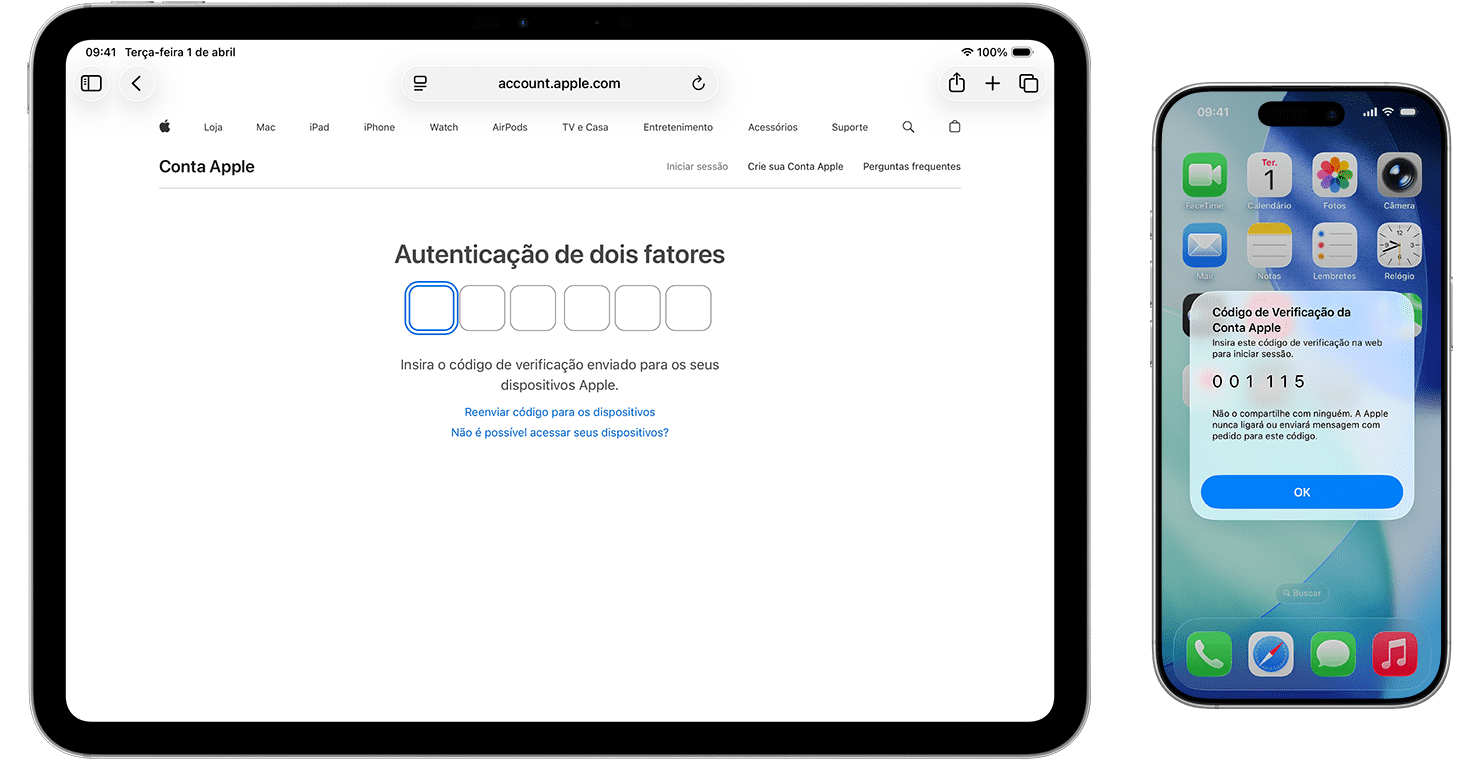
Apple requires 2FA to access App Store Connect and recommends not sharing passwords or verification codes. That’s why the first step is to ensure the account holder and the people who will operate the account have authentication working reliably.
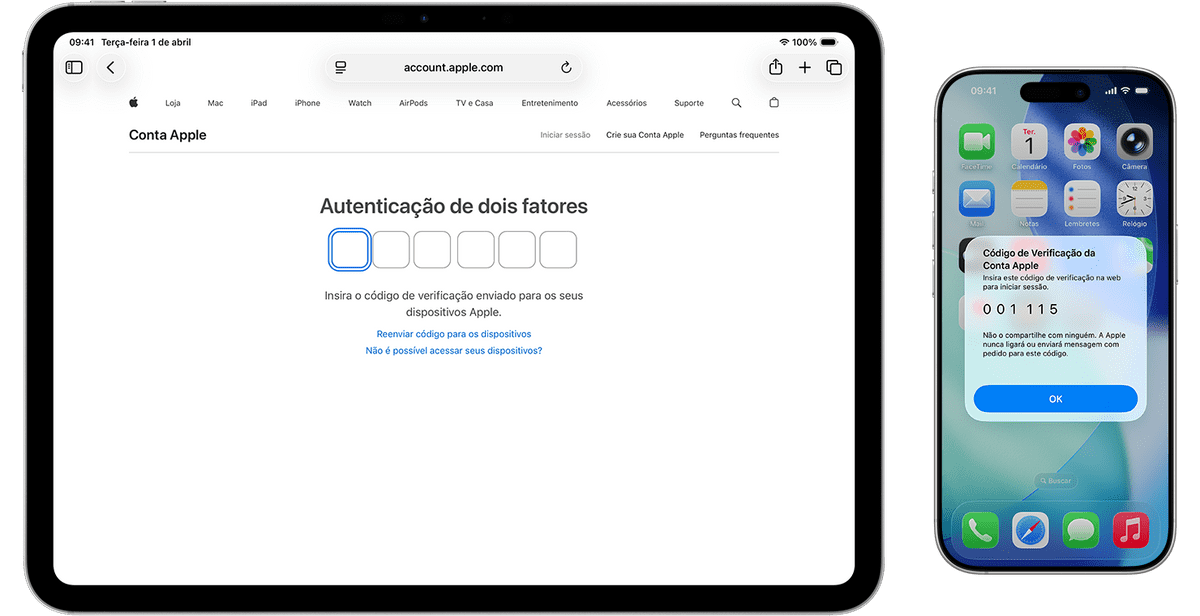
2FA checklist:
- 2FA enabled on the Apple Account (do not confuse with the old “two-step verification”).
- Valid trusted phone number (don’t leave it tied to a number nobody answers).
- At least one trusted device with an active session (iPhone, iPad, or Mac).
- Profile data (first name, last name, address, and phone) updated.
Business best practices:
- Avoid “shared Apple Accounts” used by multiple employees. The most stable setup is: each person uses their own Apple Account and receives permissions in App Store Connect.
- If your company uses managed Apple Accounts through Apple Business Manager, verify whether that Apple Account can access the program (this may require internal adjustments).
Step 2 — D‑U‑N‑S and consistency of legal entity data
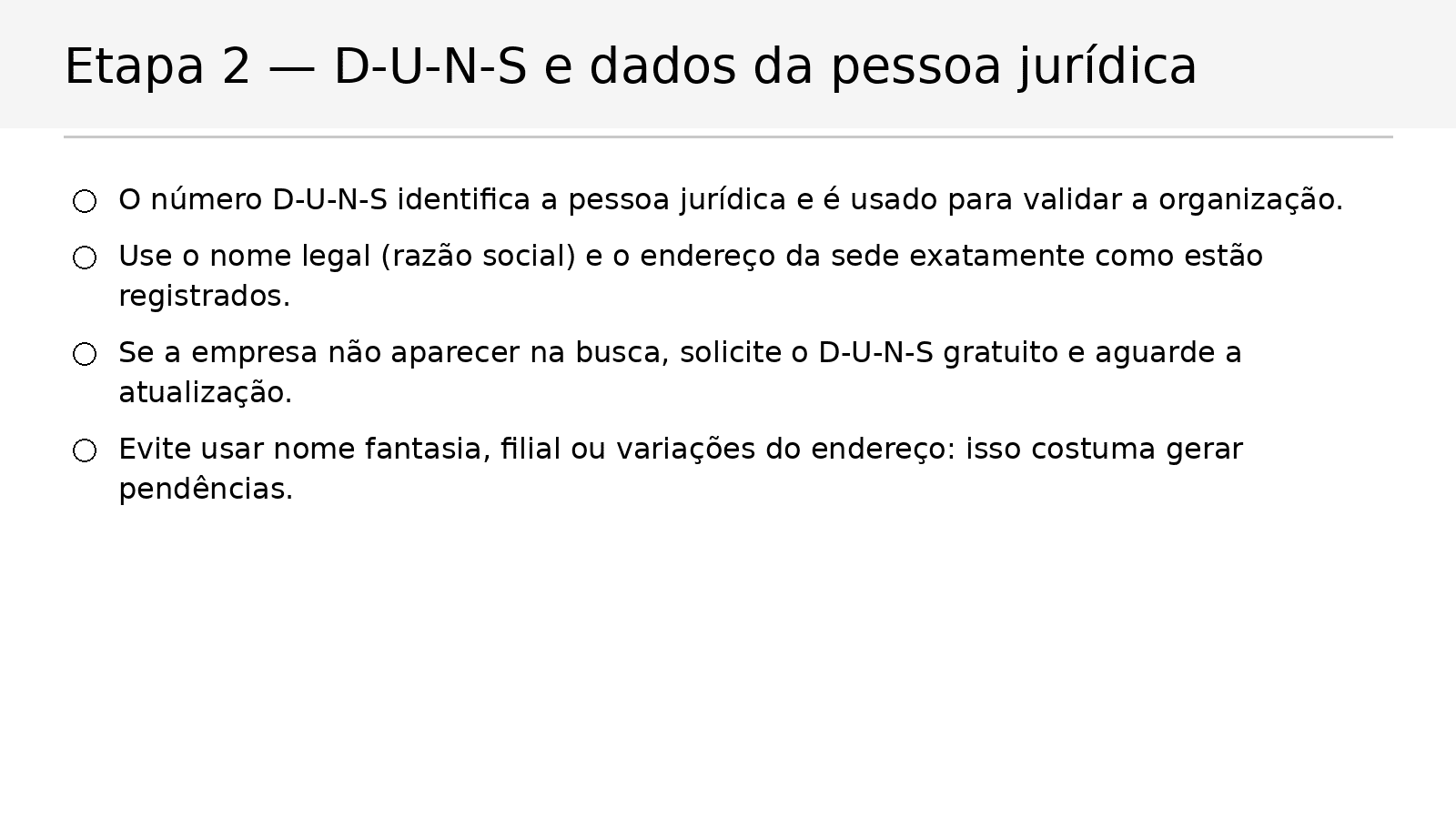
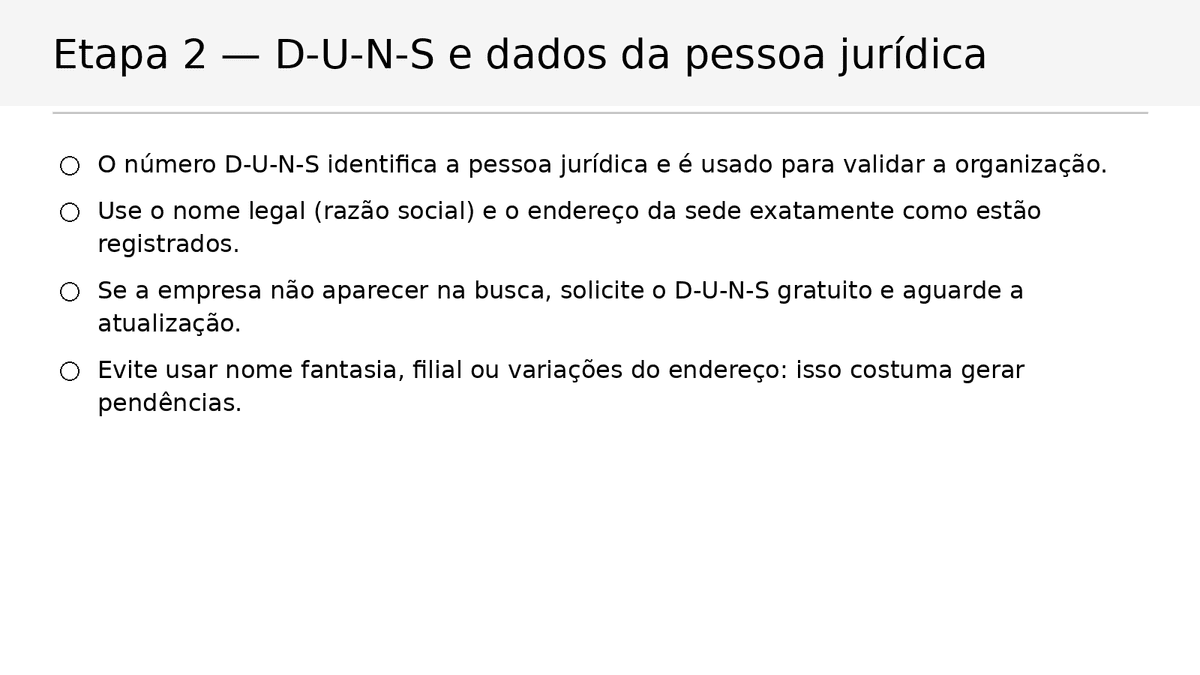
For Organization enrollment, Apple uses D‑U‑N‑S to verify identity and legal entity status. The critical point here is consistency: what you enter during enrollment must match the registration data.
D‑U‑N‑S checklist:
- D‑U‑N‑S exists and is associated with the correct legal name.
- Headquarters address (and, if applicable, mailing address) is correct.
- Corporate contact information is updated.
- You are not using a trade name/branch name in place of the legal name.
Common errors:
- Entering a legal name with abbreviations that don’t exist in the registration.
- Using the “store address” when D‑U‑N‑S is registered to HQ.
- Mixing tax IDs/legal names of different companies in the same corporate group.
Step 3 — Apple Developer Program enrollment as an Organization
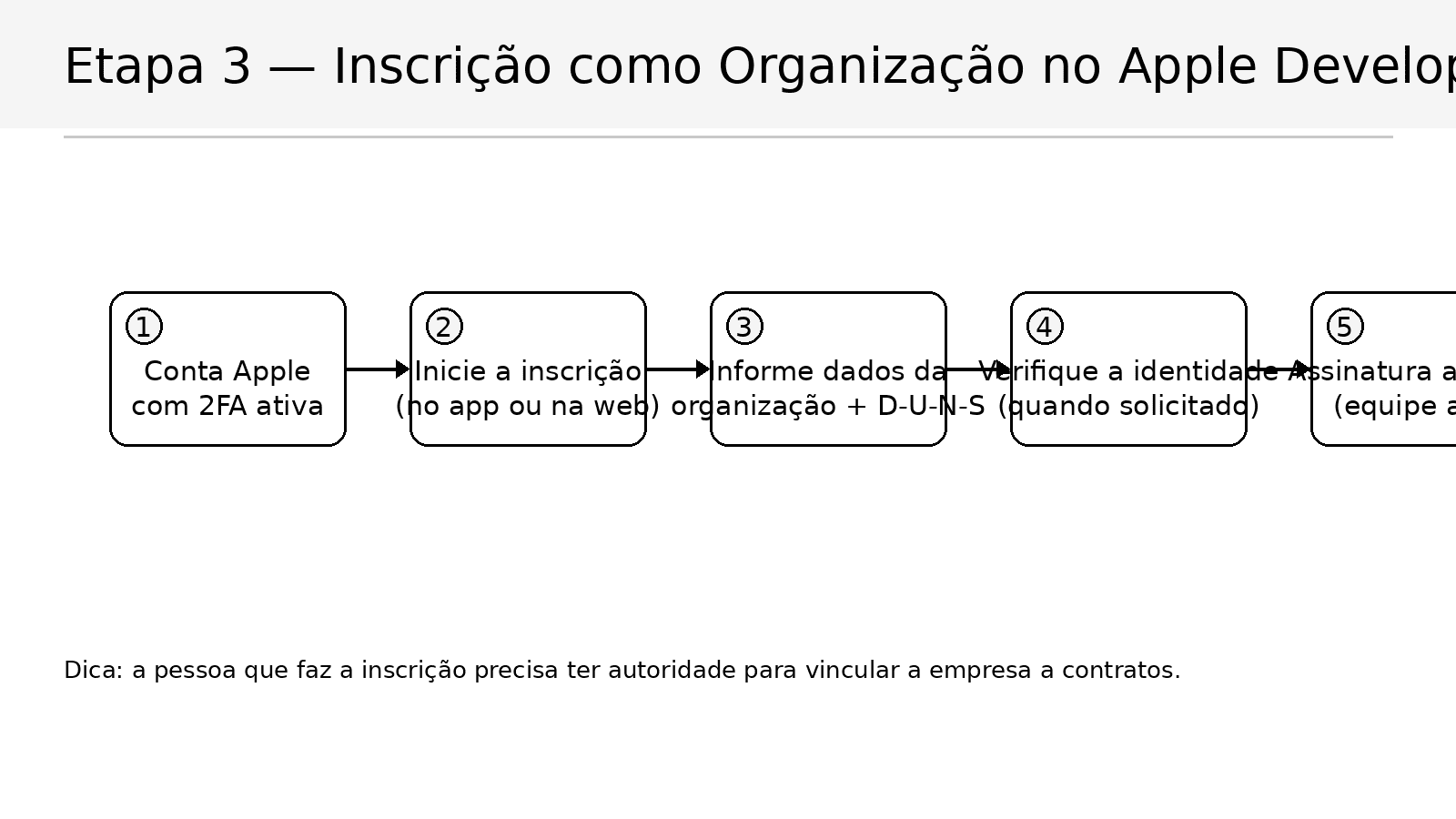
Enrollment can be done through the Apple Developer app (iPhone/iPad/Mac) or on the web. For organizations, the most important point is: the person enrolling must have legal authority to bind the company to contracts.
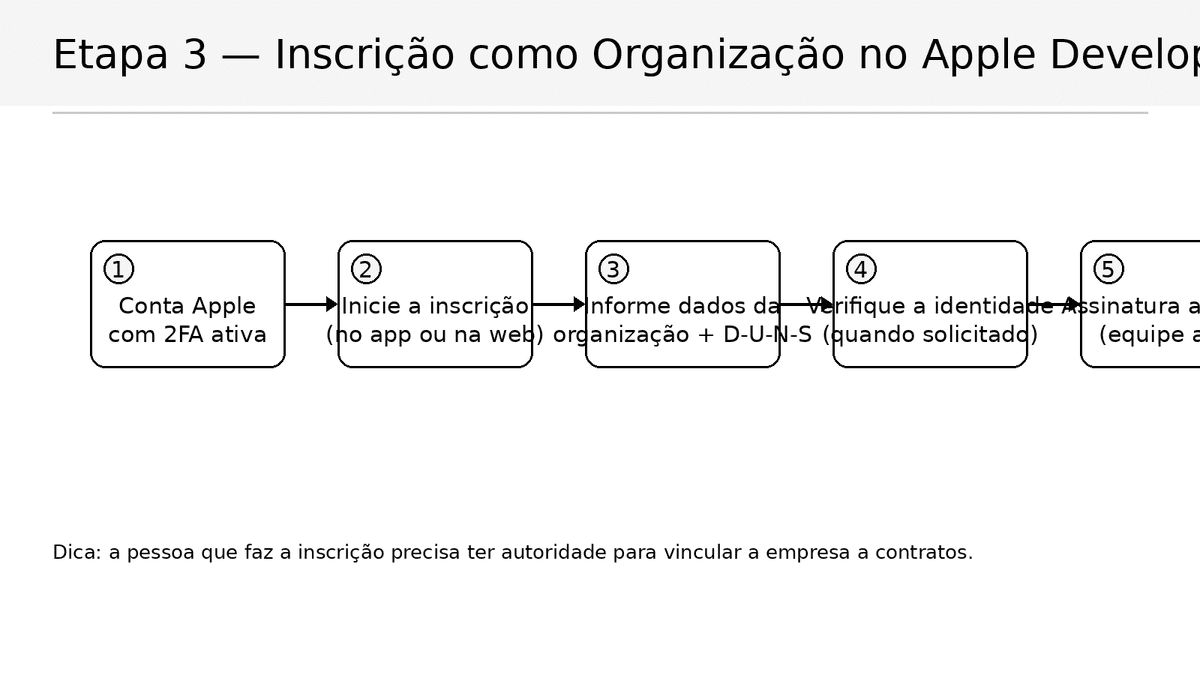
Enrollment checklist:
- Annual membership is active (payment completed).
- Enrollment type is Organization (not an individual).
- Apple Account used for enrollment belongs to the responsible person (not a generic email without access).
- If identity verification is requested, it was completed (usually in the Apple Developer app).
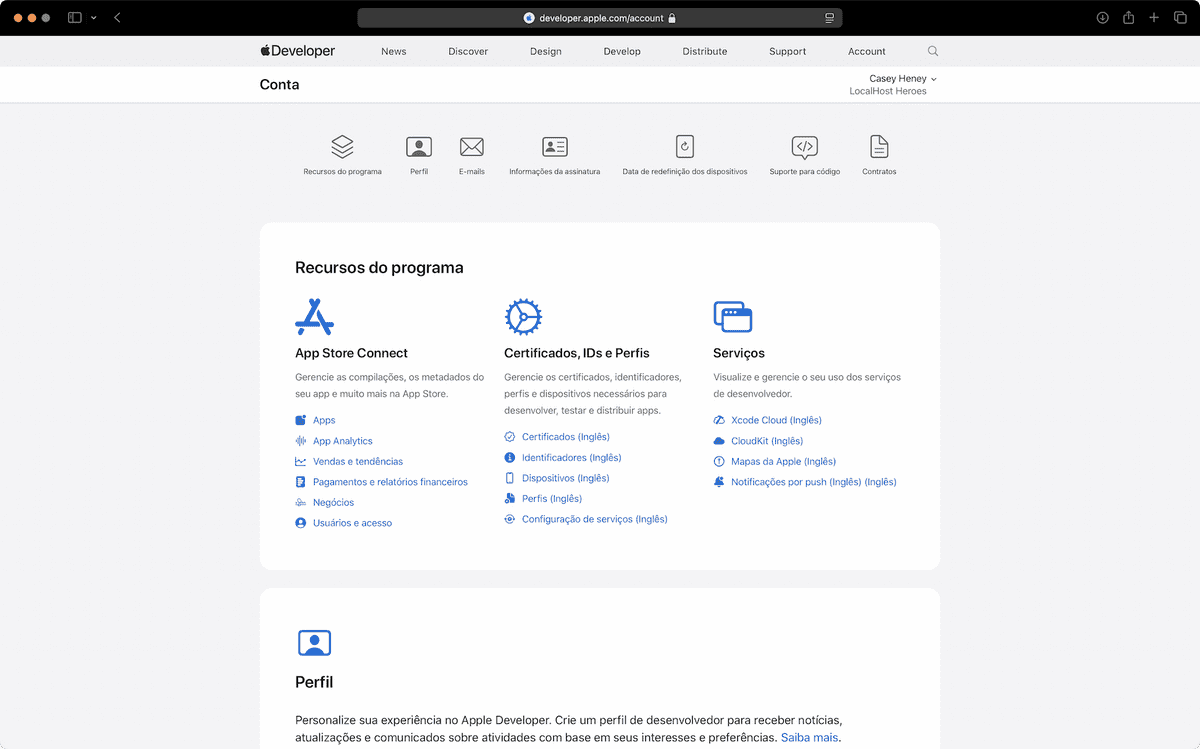
How to confirm it worked:
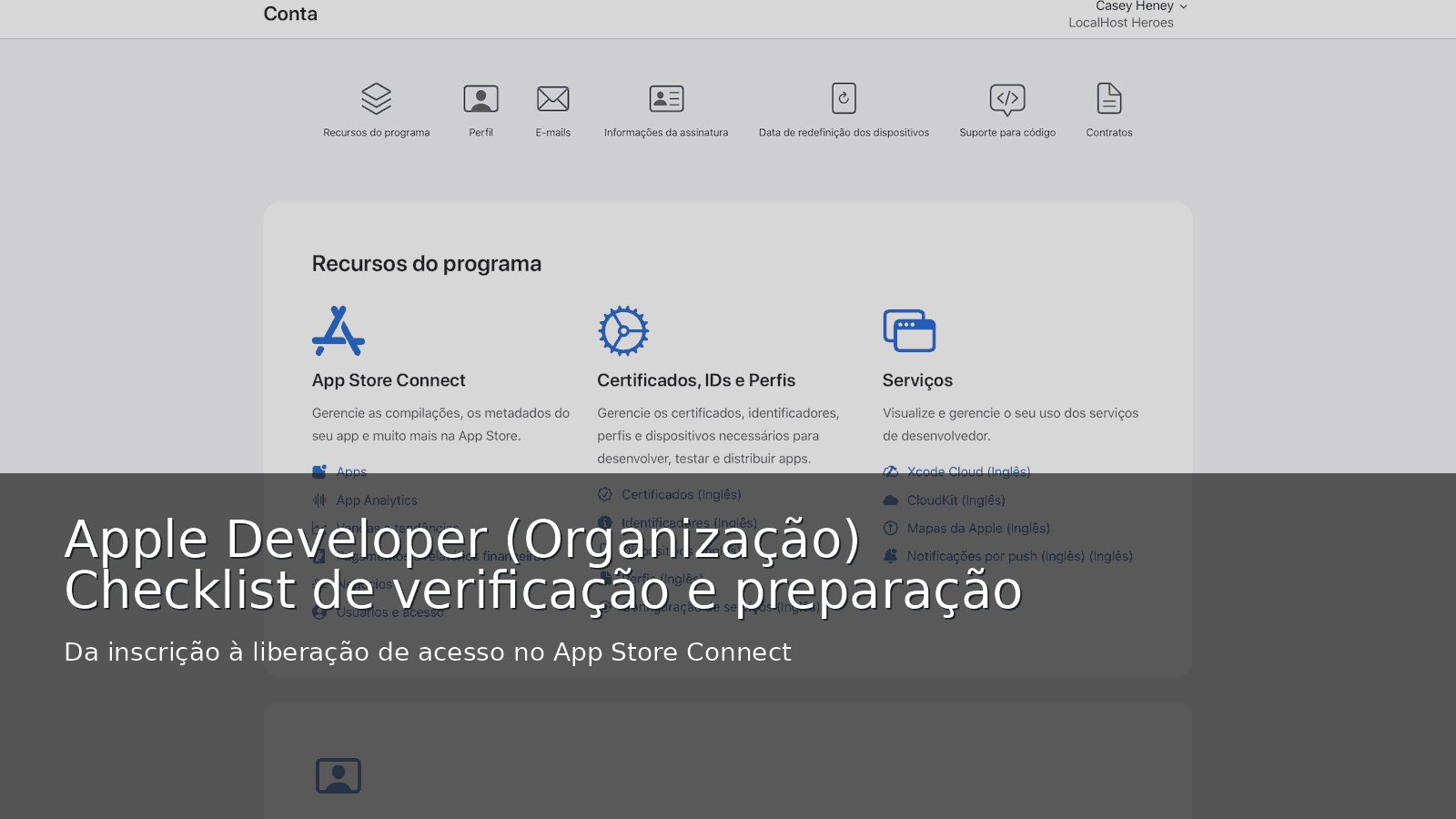
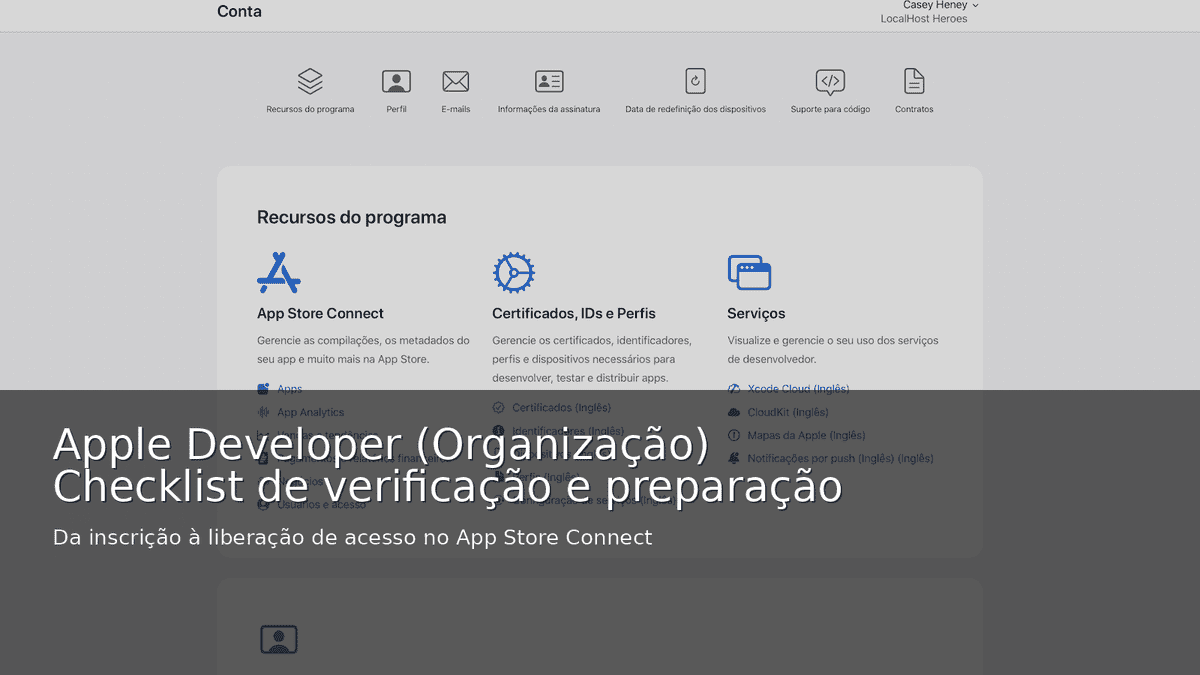
- When you access the Apple Developer account area, you see Program Resources and can access App Store Connect and certificates/IDs/profiles.
Step 4 — App Store Connect: grant publishing access (without sharing passwords)
App Store Connect is designed to work with different people and different permission levels. The recommended flow is: each team member signs in with their own Apple Account and is invited to the team.
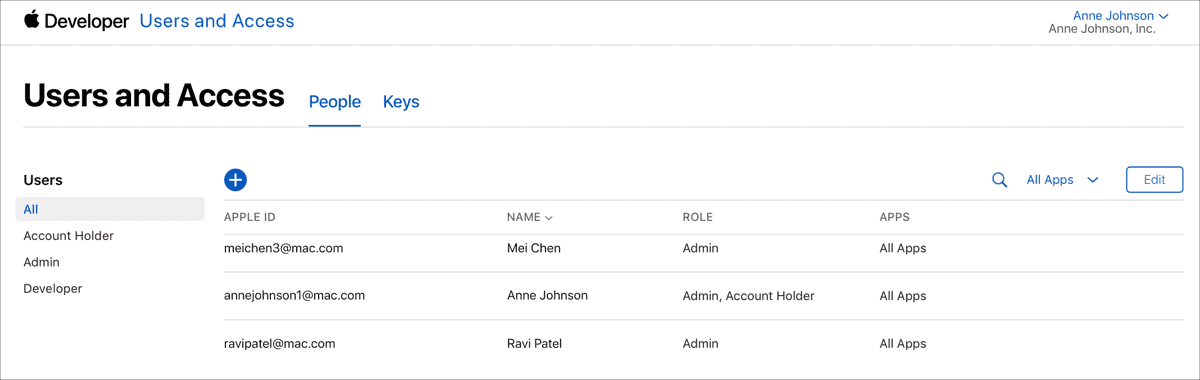
In App Store Connect, the most important menu is Users and Access.
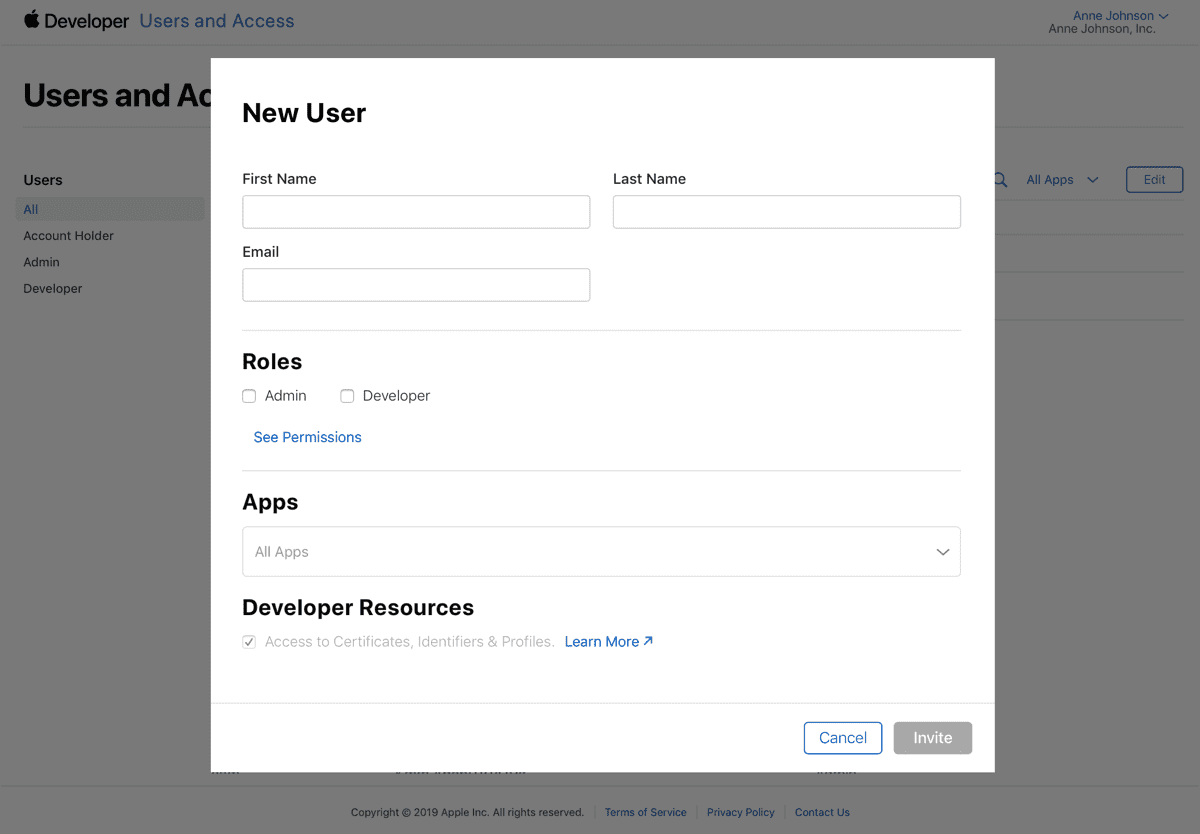
4.1 Add a user with the right profile
To enable publishing, the simplest is to grant Admin. Depending on your flow, you can use “App Manager” or “Developer”, but that usually requires fine-tuning and creates permission questions.
Step-by-step (summary):
- App Store Connect → Users and Access
- Add new user (+)
- Fill in first name / last name / email
- Select the role (e.g., Admin)
- Confirm whether you need to enable Access to Certificates, Identifiers & Profiles (when the team will handle certificates/provisioning)
Important notes:
- “Admin” is a broad role (useful to speed up publishing and avoid back-and-forth).
- The account holder remains the central point for decisions and contracts.
- In larger teams, you can use more restrictive roles, but that requires a clear responsibility design.
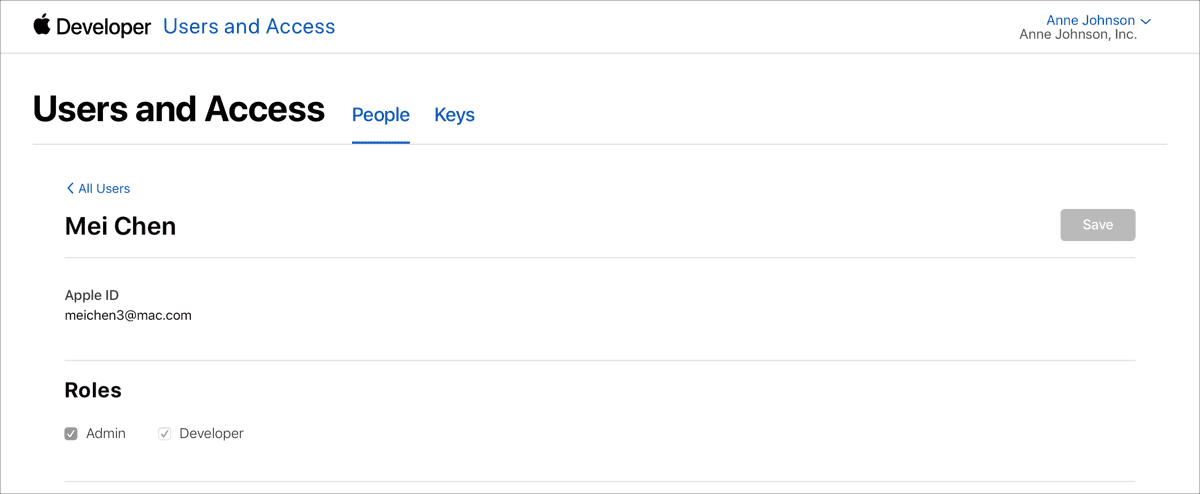
4.2 Adjust roles and permissions later (if needed)
If someone was invited with the wrong role, you can adjust it.
Tip: do a quick review of “who has which role” before the first submission, to avoid blockers mid-process.
Step 5 — Agreements, tax, and banking (only if the app is monetized)
If the app will be free and won’t have in-app purchases/subscriptions, you may not need to finish everything right now.
But if the app will generate revenue (paid app, in-app purchases, subscriptions), you will usually need to accept the appropriate agreement and fill in tax and banking information.

Monetization checklist:
- “Paid Apps” agreement accepted/active (when applicable).
- Tax forms submitted (requirements vary by country/region).
- Banking information added (for payouts).
If you don’t plan to monetize now, record that internally. If monetization is planned for later, involve finance early—it’s usually the most common bottleneck.
Common issues (and how to unblock)
- “I can’t sign in” / “2FA code never arrives”
- Confirm trusted phone and trusted devices.
- Avoid depending on a single number (especially if it belongs to a third party).
- “Account created, but team / program resources don’t show up”
- This usually indicates the program enrollment is not active (payment/enrollment pending) or the type is wrong (individual vs organization).
- “D‑U‑N‑S doesn’t match / organization isn’t recognized as a legal entity”
- Review legal name and address against the registration.
- Don’t use trade name/branch name.
- “User can sign in, but can’t publish / generate certificates”
- Adjust the role (Admin) and, when needed, enable access to Certificates, Identifiers & Profiles.
Final checklist (copy/paste for your team)
With this, your account will be ready for the publishing process with less rework and lower risk of blockers due to incomplete setup.