Índice do artigofaltam 7 min de leitura
If a development team needs to set up your project's infrastructure on AWS, follow the order below. First you sign in as the root user, confirm that the account has a credit card on file and, only after that, create a separate IAM user for the developers.
The goal is not to share the main account. The goal is to create separate, auditable and secure access, with enough permissions to set up the initial environment without exposing the root password, the card, the CVV/CVC or MFA codes in conversations.
The most common mistake is trying to sign in on the IAM user sign in screen using the account's main email. On that screen, the root account email must not be typed into the Account ID or alias field. To access the main account, you need to use the Sign in using root user email option.
Video summary
In the video, the flow creates an IAM user for development, adds that user to a group called DEV and applies an initial set of infrastructure permissions.
The default permissions used in this guide are:
AmazonS3FullAccessAmazonEC2FullAccessAmazonRDSFullAccessAWSLambda_FullAccessAmazonVPCFullAccessCloudWatchFullAccessCloudWatchFullAccessV2AmazonEventBridgeFullAccessIAMReadOnlyAccess
These permissions let the team set up storage, servers, database, networking, logs, Lambda functions, events and access validation. Without this set, the user may be able to sign in to AWS but still be blocked in important parts of the setup.
Key moments in the video:
| Time | What happens |
|---|---|
0:46 | Search for IAM in the AWS console. |
1:13 | Create a user for the development team. |
1:49 | Configure permissions. |
2:35 | Add S3. |
2:48 | Add EC2 and RDS. |
3:08 | Add Lambda. |
3:35 | Add VPC. |
4:06 | Add CloudWatch and EventBridge. |
4:49 | Add the IAM read permission. |
5:37 | Create the group and finish the user. |
Before creating the user: confirm login and card
Have these ready:
- the email used to create the AWS account;
- the AWS account password;
- access to the email and phone used for verification;
- the credit card of the company or of the person responsible for the account.
Do not send the card details to the development team. The card must be added by you, directly on the AWS website.
1. Sign in as the root user
- Go to https://portal.aws.amazon.com/ or https://console.aws.amazon.com/.
- If the IAM user sign in screen appears, do not fill in the Account ID or alias field with your email.
- Click Sign in using root user email.
- Type the main email of the AWS account, that is, the email used to create the account.
- Continue with the password and the security verification AWS asks for.
Think of it this way: the root user is the main access to the AWS account. An IAM user is a separate user you create later so other people or teams can access the account with controlled permissions.
If you do not remember the main account password, use AWS's own password recovery through the root email.
2. Add the credit card
After signing in as the root user, AWS may show the Sign up for AWS or Billing information step. If the Credit card number field appears, it means the payment method has not been added yet or needs to be confirmed.
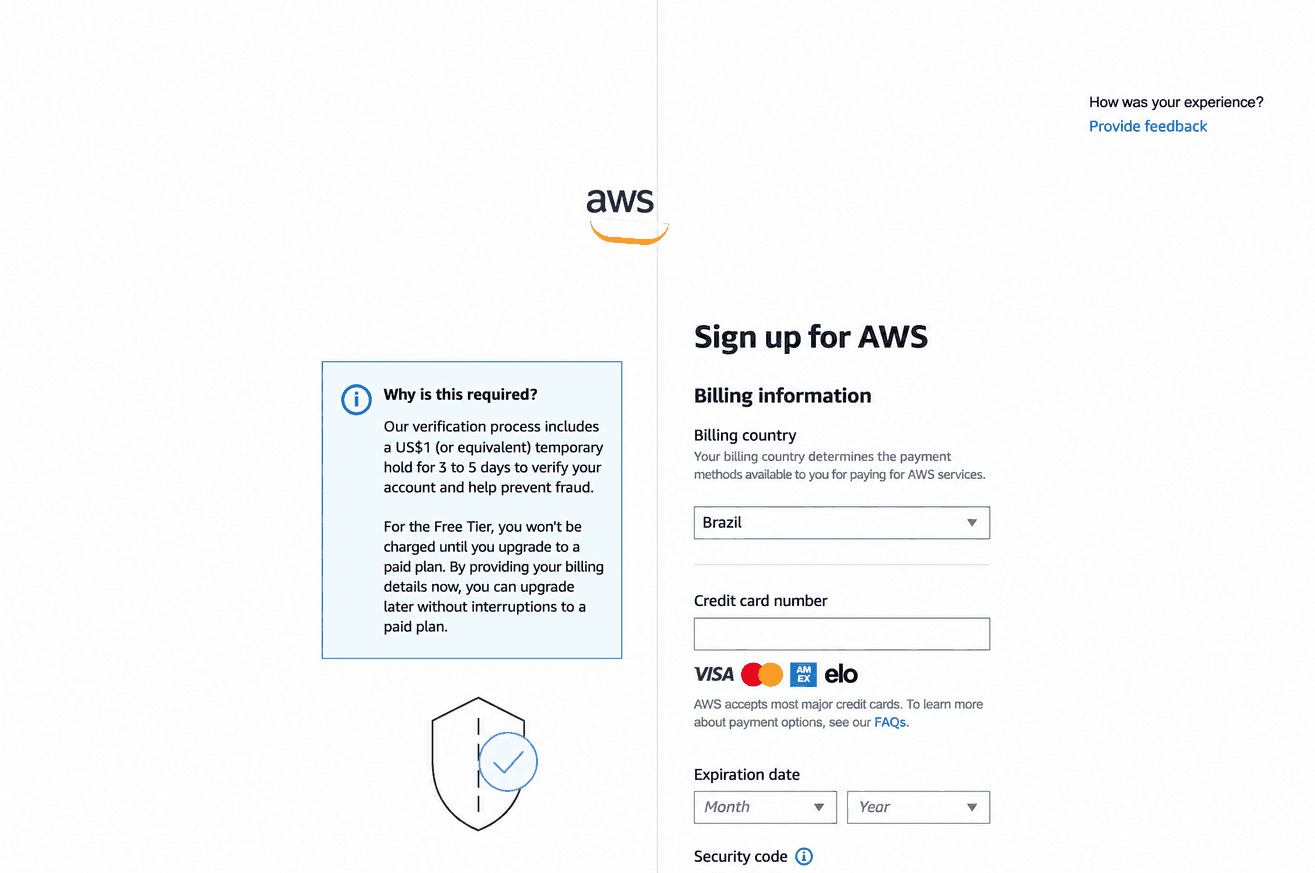
Fill in the card details directly on the AWS page and complete the verification. AWS may place a small, temporary hold to confirm the card, according to the provider's own verification rules.
Important:
- do not send the card number by WhatsApp, email or chat;
- do not send the CVV/CVC;
- do not send screenshots showing payment details;
- do not send the root password and MFA codes together in a conversation history.
If this step is not completed, the account may remain incomplete and the technical team will not be able to set up the required services.
If AWS requires a one-off validation during a session together with the technical team, approve the code in real time, for that specific action. The goal is not to leave permanent credentials, the card or the root password exposed in messages.
3. Create an IAM user and grant infrastructure permissions
Once the account is accessible and has a payment method, create a separate IAM user for the development team. Do not use the root account for the project's day-to-day work.
In the AWS console, search for IAM in the top bar. That is where you create users, groups and permissions.
Create a user called xapps or another name agreed with the team. Enable console access.
Use a custom password and check the option to require a password change at first sign-in.
Next, create a group called DEV, put the user in that group and attach the permissions below.
| Permission | What it is for | What can fail without it |
|---|---|---|
AmazonS3FullAccess | Manage buckets, files, images, documents, uploads and any backups. | The team cannot create or configure buckets. |
AmazonEC2FullAccess | Manage compute resources, instances and parts of the infrastructure. | The team may not be able to configure servers or related resources. |
AmazonRDSFullAccess | Create and configure the application's database. | The team gets into AWS but cannot create or configure the database. |
AWSLambda_FullAccess | Create and configure Lambda functions when the project uses serverless routines. | Integrations, jobs or helper functions may be blocked. |
AmazonVPCFullAccess | Configure networking, VPC, subnets, routes and security groups. | The database, API and other services may not communicate correctly. |
CloudWatchFullAccess | View logs, metrics, alarms and operational information. | The team cannot diagnose application errors. |
CloudWatchFullAccessV2 | Complement CloudWatch access in accounts that use the new version of the policy. | Logs and observability resources may be partially blocked. |
AmazonEventBridgeFullAccess | Create events, rules and schedules used by Lambdas and automations. | Scheduled routines or event-driven integrations may not work. |
IAMReadOnlyAccess | View users, groups and permissions without changing IAM. | The team may not be able to check whether access was applied correctly. |
This set is not a single permission for the database. It is an initial set to configure infrastructure, storage, networking, observability, functions and events.
After creating the user and the developer group, go back to IAM → User groups → DEV → Permissions and check that the policies appear in the group's permission list.
Why do we ask for broad permissions at the start?
These permissions are used for the initial setup of the AWS environment. At the start of the project, the team may need to create the database, configure networking, adjust security groups, prepare buckets, enable logs, create Lambda functions or configure events.
Once the infrastructure is created and validated, access can be reviewed and reduced according to the project's real needs. This review follows the principle of least privilege: keep only the access needed for operations, maintenance and support.
4. Send only the necessary details
When you finish creating the IAM user, send the team:
- the AWS console sign-in URL for the IAM user;
- the user created, for example
xapps; - the temporary password you created;
- confirmation that the password change at first sign-in is enabled;
- confirmation that the user is in the DEV group;
- confirmation that the 9 permissions were applied to the group.
Message template:
Hi.

I created the AWS access for the development team.

IAM user: xapps
Group: DEV
Console access: enabled
Password change at first sign-in: enabled

Permissions applied to the group:

- AmazonS3FullAccess
- AmazonEC2FullAccess
- AmazonRDSFullAccess
- AWSLambda_FullAccess
- AmazonVPCFullAccess
- CloudWatchFullAccess
- CloudWatchFullAccessV2
- AmazonEventBridgeFullAccess
- IAMReadOnlyAccess

I also confirmed that the user is in the DEV group.

Here are the IAM sign-in URL, the user and the temporary password.
Do not send:
- the root user password;
- the root password together with an MFA code;
- card details;
- the CVV/CVC;
- personal documents;
- screenshots with account data, card, sensitive email or phone number.
If an MFA code or an SMS/email confirmation is essential to complete an assisted step, agree on the action beforehand, use the code only for that attempt and review the access afterwards. For daily work, the team must use the IAM user you created, not the root account.
5. Common problems
| Problem | What probably happened | How to fix it |
|---|---|---|
| Authentication failed appears on the IAM user sign in screen | You tried to sign in as an IAM user using the main account email. | Click Sign in using root user email and sign in with the AWS account's root email. |
| AWS asks for a credit card | The payment method has not been added or confirmed yet. | Add the card directly on the AWS portal and complete the billing verification. |
| The team cannot get in | The IAM user has not been created yet, the URL sent is wrong or the permissions were not applied. | Review the IAM user, the DEV group, the IAM sign-in URL and the permissions. |
| The user exists but did not inherit the permissions | The user was not added to the right group. | Open the IAM user and confirm it is in the DEV group. |
| The team gets into AWS but cannot create a database | AmazonRDSFullAccess, AmazonVPCFullAccess or AmazonEC2FullAccess is missing. | Check that these policies are in the DEV group. |
| The team cannot create a bucket or configure files | AmazonS3FullAccess is missing. | Add AmazonS3FullAccess to the DEV group. |
| The team cannot configure Lambda | AWSLambda_FullAccess is missing. | Add AWSLambda_FullAccess to the DEV group. |
| The team cannot create schedules or events | AmazonEventBridgeFullAccess is missing. | Add the right EventBridge policy to the DEV group. |
| The team cannot view logs or diagnose errors | CloudWatchFullAccess or CloudWatchFullAccessV2 is missing. | Add the CloudWatch permissions to the DEV group. |
| The team cannot check the applied permissions | IAMReadOnlyAccess is missing. | Add IAMReadOnlyAccess to the DEV group. |
| You forgot the main account password | The root user password is not available. | Use AWS password recovery with the account's root email. |
Why avoid the root account
The AWS root account has full, unrestricted access. Using it for daily work increases risk, makes auditing harder and leaves the operation weak from a security standpoint.
The right approach is to use the root user only for account administration tasks, such as billing, recovery, critical settings and creating the initial access. For daily work, create a separate IAM user, auditable and with controlled permissions.
Quick best practices
- Enable MFA on the root account.
- Enable MFA for important users too.
- Do not use the root user day to day.
- Use a separate IAM user for the technical team.
- Review permissions after the initial setup.
- Remove access that is no longer needed.
- Rotate credentials when the team changes or exposure is suspected.
Final checklist before sending the access
- I was able to sign in as the root user.
- The credit card was added directly on AWS.
- The AWS account completed the requested verification.
- The IAM user was created.
- The DEV group was created.
- The IAM user is in the DEV group.
- Password change at first sign-in is enabled.
- The group has
AmazonS3FullAccess. - The group has
AmazonEC2FullAccess. - The group has
AmazonRDSFullAccess. - The group has
AWSLambda_FullAccess. - The group has
AmazonVPCFullAccess. - The group has
CloudWatchFullAccess. - The group has
CloudWatchFullAccessV2. - The group has
AmazonEventBridgeFullAccess. - The group has
IAMReadOnlyAccess. - I sent only the IAM sign-in URL, the user and the temporary password.
- I did not send the root password, card, CVV/CVC or MFA codes in messages.
Related guides for publishing the app
If AWS is part of getting ready to publish the app, also review:
- What do I need to publish my app in the stores?
- Staging and production environments: why to separate them before publishing
- DNS pointing, HTTPS and API: what to prepare
- Recurring app costs: servers, stores, APIs and maintenance
- MFA/2FA for clients: how to keep the account secure without blocking the project
- Post-launch: update routine, fixes and roadmap
Official references
- AWS: signing in as the root user
- AWS Billing: managing payments
- AWS IAM: best practices to protect the root user
- AWS IAM: security best practices
This support is part of our DevOps Operation, X-Apps' ongoing service for maintaining, evolving, monitoring and governing digital products.